
目次
前提
- Route53にドメインは登録済み(=レコード作成済み)
- LightsailでWordpressやDrupalのアプリケーションを立ち上げていること
購入したドメインをRoute53に登録するやり方については以下の記事を参考にしてください
やり方
インスタンスの設定画面にアクセスする
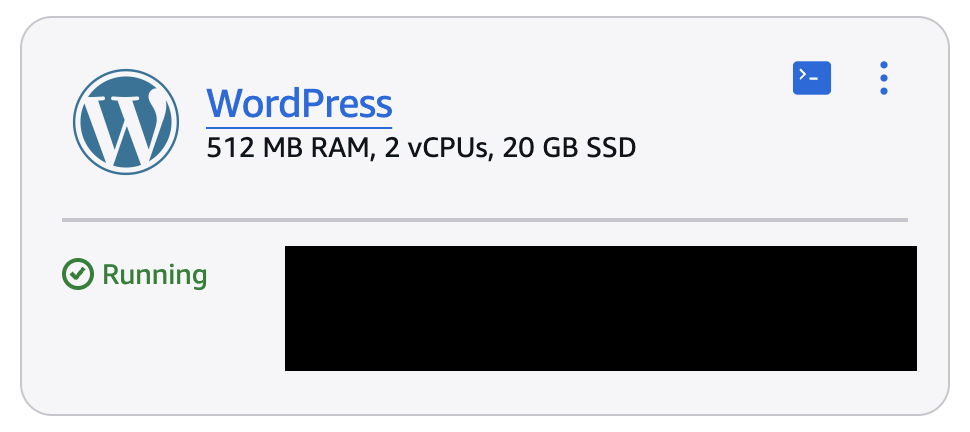
静的IPを固定する
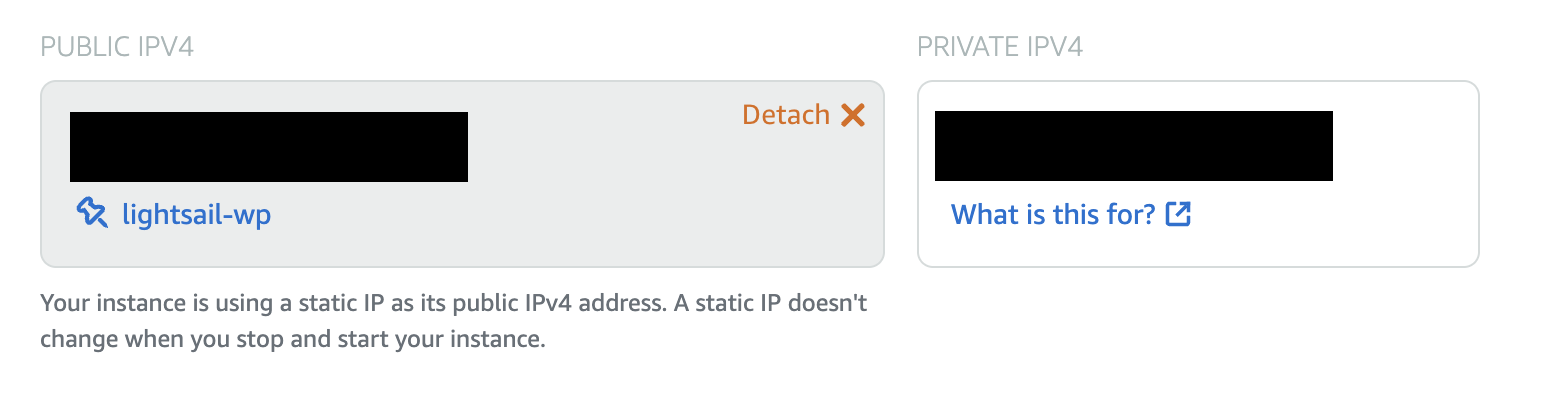
Networkingタブから静的IPを固定します
インスタンスにSSH接続する
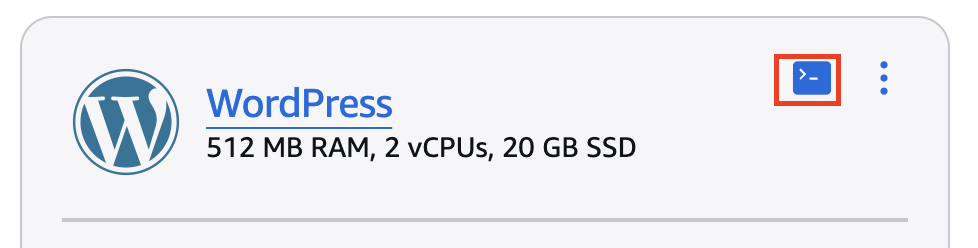
インスタンス一覧の上図赤枠のリンクからブラウザ上でSSH接続できます
bncertツールでHTTPS化する
sudo /opt/bitnami/bncert-toolSSH接続できたら👆のコマンドを実行する
Domain list []: www.example.com example.comドメインの入力が求められたらインスタンスに紐づけたいドメインを入力します。
複数あるなら空白スペースで区切ります。
Enable HTTP to HTTPS redirection [Y/n]: yhttpからhttpsへのリダイレクトを希望するならyを、そうでないならnを入力します。
The following changes will be performed to your Bitnami installation:

1. Stop web server
2. Configure web server to use a free Let's Encrypt certificate for the domains: www.example.com
3. Configure a cron job to automatically renew the certificate each month
4. Configure web server name to: example.com
5. Enable HTTP to HTTPS redirection (example: redirect http://www.example.com to https://www.example.com)
6. Start web server once all changes have been performed


Do you agree to these changes? [Y/n]: y
色々設定するからインスタンスを再起動するね、ということが書かれています。
サービスに問題なければ再起動します。
Create a free HTTPS certificate with Let's Encrypt

Please provide a valid e-mail address for which to associate your Let's Encrypt
certificate.

(中略)

The Let's Encrypt Subscriber Agreement can be found at:

https://letsencrypt.org/documents/LE-SA-v1.3-September-21-2022.pdf

Do you agree to the Let's Encrypt Subscriber Agreement? [Y/n]: y
bncertツールを使ってHTTPS化する上での規約に同意を求められます。
同意するのであればyを、そうでないならnを入力します。
同意しない場合はコマンドが終了します。
----------------------------------------------------------------------------
Performing changes to your installation

The Bitnami HTTPS Configuration Tool will perform any necessary actions to your
Bitnami installation. This may take some time, please be patient.

----------------------------------------------------------------------------
Success
最後に👆のよう成功したことが表示されればHTTPS化が完了しています。
ブラウザでアプリケーションを開いて確認してみましょう。
手順は以上です。